
Overview of Integration
We have partnered with Oleeo to provide our Stepstone Connect solution which lets jobseekers apply seamlessly for jobs posted on Stepstone Group job boards. All applications will be passed directly to the Oleeo ATS, with confirmation of the source of this application.
How does this work?
Stepstone Connect is a free-to-use technology that enables a seamless integration between our StepStone Group job boards and Oleeo. When integrated, this will enable the automatic transfer of applicant data and CVs into your Oleeo ATS.
This works by simplifying the job application process and removing the need for a candidate to re-enter their information on an external web form. We pull the screening questions and additional requirements from the Oleeo careers site and ask the candidate to provide this information as part of their application on our site.
This in turn leads to a much higher application completion rate, greatly reducing candidate drop-off in the application process.
We are also able to track candidates as they move through the recruitment funnel, using candidate disposition data from Oleeo. This enables us to determine how many applicants of value we are providing you, therefore giving you greater insight and visibility into our performance.
Requirements
To activate ATSi, clients are required to provide the following information:
- Username and password for the integration user
- Oleeo API URL host (e.g. https://stepstone-config.tal.net/)
- Job offer examples
- Self-Configuration Level 3 is required to configure process flows. Automatic follow-up emails configuration
- Privacy policy URL
Once we have received the above information, we will proceed with testing.
Steps to integrate and enable
Step 1: Email template
Go to Configuration → Correspondence → Email Templates

There should be “Candidate Added, Application Invite” template that can be used out-of-the-box to confirm application submission.

If you want to create a new one, click Add New Template at the top the page.
Choose Application Template category.
Fill the rest of the fields.

Step 2: Modify Application Process flow
Go to Configuration → Action Categories → Add
Choose Correspond as Action Type

Go to Actions tab:

And choose “Candidate Added, Application Invite” template or your newly added template.
Click “Create”.
Go to Configuration → Process → Application Process.
Choose Application Workflow.
Go to Process Rules tab → Click Edit.
Select the step for which auto email should be assigned → Click Settings.

In Action Dropdown choose Correspond as Action Type, choose “Candidate Added, application invite” action. Or your newly created Action from the previous step

Click Edit rule.
Step 3: Privacy Statement URL
Stepstone Connect can display a clickable link to candidates to allow them to view the Privacy Policy before they submit their application. This will also make them aware that by applying for this job they consent to the displayed policy.
To enable this, we require the following:
- URL to your Privacy Policy or Terms & Conditions.
- Company name to display beside your Privacy Policy or Terms & Conditions.
If you do not share a Privacy Policy URL, we will show a generic message to all candidates instead.
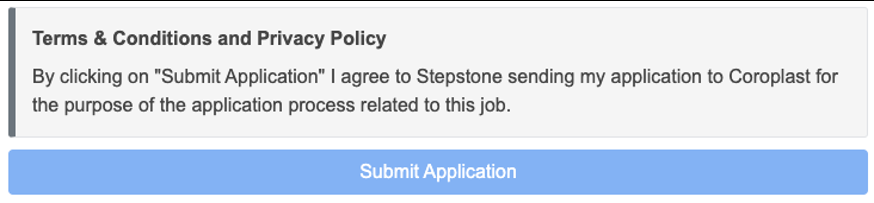
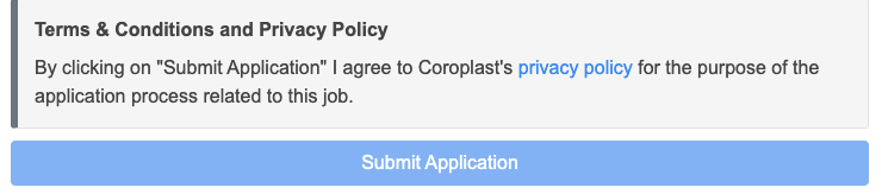
Please add your policy URL into the document to send your Stepstone contact.
Testing Process
End-to-end Test
Once the steps above have been completed, we will conduct an end-to-end test by following the steps below:
- Configure the integration within our internal system.
- Set up a test job.
- This will be set up on a test account and not use your account credits.
- Apply for the job as a candidate.
- Test to see if any screening questions are pulling through correctly, by cross-referencing with the Oleeo careers apply page.
- Send an application into Oleeo.
- Advise application has been sent and ask you to confirm that the application and source has come through as expected.
Considerations:
- If we have any issues throughout this process, we will feedback to you in the first instance.
We will complete the above steps firstly in Staging, before moving into Production.
Go Live
Once testing has been completed and we have confirmed that the integration works, we will turn this on for all live jobs on your account.